A common PDF workflow looks something like this: collect the images, put them into a document, export the PDF, notice that the file is enormous, and then try to compress it.
Sometimes that works. Sometimes it creates blurry images and a document that still isn't particularly small.
A better approach is to make a few decisions before exporting.
We tested how image resolution affected PDF size using four synthetic photo-like images. Each image was exported into a PDF at its original resolution. The tests used synthetic sample files and local encoding, using the same techniques as browser-side tools. No user data was involved.
Start with the intended destination
The first question should not be which compression button to use. It should be: where will this PDF be viewed?
A document intended for email or screen reading has different requirements from one intended for professional printing. A large photograph filling an entire printed page needs more resolution than a small image displayed in the corner of a digital document. If you choose the wrong resolution at the beginning, later compression may only make the problem harder to fix.
What the test showed
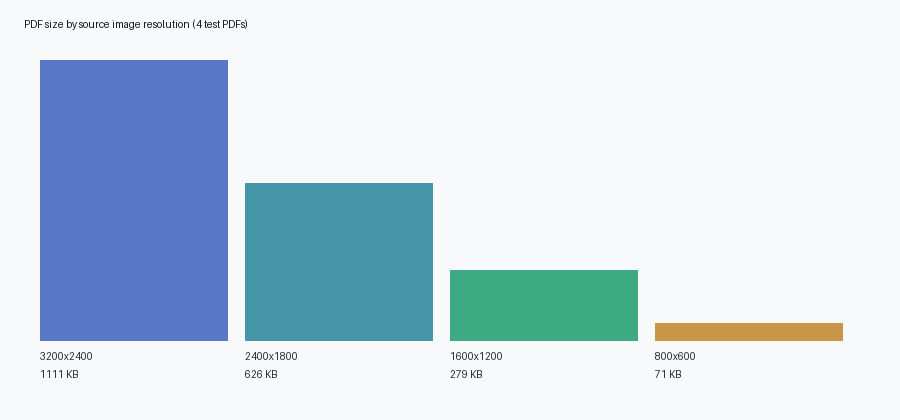
The 3200×2400 synthetic photo produced a 1,111 KB PDF. At 2400×1800, the PDF measured 626 KB. At 1600×1200, it measured 279 KB. At 800×600, it measured just 71 KB.
The difference between the largest and smallest output was 1,040 KB, or approximately 93.6%. These are single-image PDF measurements, not universal predictions for multi-page documents. Text, fonts, compression settings, image content, and document structure can all change the final size.
| Source resolution | PDF output |
|---|---|
| 3200×2400 | 1,111 KB |
| 2400×1800 | 626 KB |
| 1600×1200 | 279 KB |
| 800×600 | 71 KB |
A more sensible workflow
Prepare the images first. Check their dimensions and remove unnecessary oversized copies. If a photograph will only occupy a small portion of a page, exporting it at its original camera resolution may be unnecessary.
Choose a suitable format. Photographs usually work well with JPEG. Graphics, screenshots, and images requiring transparency may be better suited to PNG.
Keep the intended output in mind. For screen documents, moderate image dimensions can be perfectly adequate. For printing, use higher-resolution source images where necessary.
Export and inspect. Check the final PDF at normal viewing size. Look at small text, photographs, charts, and image edges.
Compress only when needed. If the PDF is still too large, try an appropriate compression setting. Keep the original version so you can compare quality rather than guessing what was lost.
Don't confuse a smaller PDF with a better PDF
A document can be tiny and still be frustrating to use. Scanned text might become unreadable. Photographs might lose important detail. Charts can become difficult to interpret.
The goal is not to reach the lowest possible file size. It is to reach a reasonable file size without damaging the document's purpose.
For everyday PDF and image operations, Pocket PDF provides browser-based tools: https://www.pocketpdf.site.
The practical lesson is worth remembering: choose resolution before export, choose compression after considering the content, and inspect the final document before sending it.