Choosing an image format can feel like picking between three options that all claim to do roughly the same thing.
But PNG, JPEG, and WebP have different strengths. The best choice depends on the image, the quality requirements, and where the file will be used.
We compared three formats using the same synthetic photo-like image at 1600×1200 resolution. The tests used synthetic sample files and local encoding, using the same techniques as browser-side tools. No user data was involved.
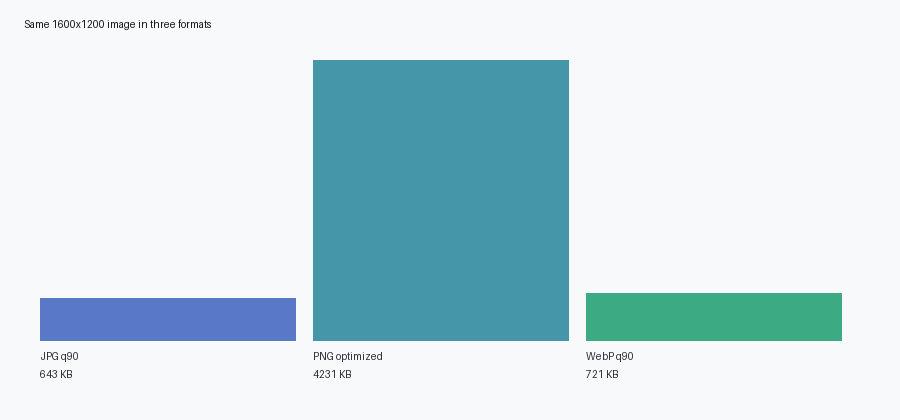
The results
The original PNG measured 4,231 KB. An optimized PNG at the same resolution also measured 4,231 KB in this test. Optimization did not produce a measurable reduction in the reported file size.
JPEG at quality 90 measured 659 KB. WebP at quality 90 measured 739 KB. JPEG was the smallest of the three in this particular comparison.
| Format and setting | File size |
|---|---|
| Optimized PNG | 4,231 KB |
| JPEG quality 90 | 659 KB |
| WebP quality 90 | 739 KB |
That might seem surprising to anyone expecting WebP to win every comparison. But image encoding results depend on the source image, encoder implementation, and quality settings. A quality value of 90 in one format is not necessarily visually equivalent to quality 90 in another.
Why the formats behave differently
PNG uses lossless compression. It preserves the original pixel values, making it useful for logos, screenshots, interface elements, illustrations, and images requiring transparency. However, photographs can produce large PNG files because they contain complex variations in color and detail.
JPEG uses lossy compression. It discards some image information to reduce file size. This makes it particularly useful for photographs, where moderate compression can produce substantial savings without an obvious visual difference at normal viewing sizes. Its main disadvantages are compression artifacts and the lack of transparency support.
WebP supports both lossy and lossless compression, as well as transparency. It is a useful format for websites because it offers flexibility across different image types. However, the actual file size still depends on encoding settings and content. A WebP export is not automatically smaller than every JPEG export.
Which format should you use?
For ordinary photographs, compare JPEG and WebP at visually similar quality settings. For logos and graphics with sharp edges or transparency, PNG is often a safer choice. For web images, WebP is worth considering, particularly when transparency or modern browser delivery matters.
Don't choose a format based on its reputation alone. Compare the actual output.
A quick testing habit: keep the original image, export two or three versions, and compare both file sizes and visual quality. Look closely at text, edges, gradients, and fine details. These are often where compression problems become noticeable.
Pocket PDF offers browser-based file utilities for working with images and other formats: https://www.pocketpdf.site.
The best image format isn't necessarily the newest or the smallest. It's the one that produces an acceptable image at a reasonable file size for its intended purpose.